
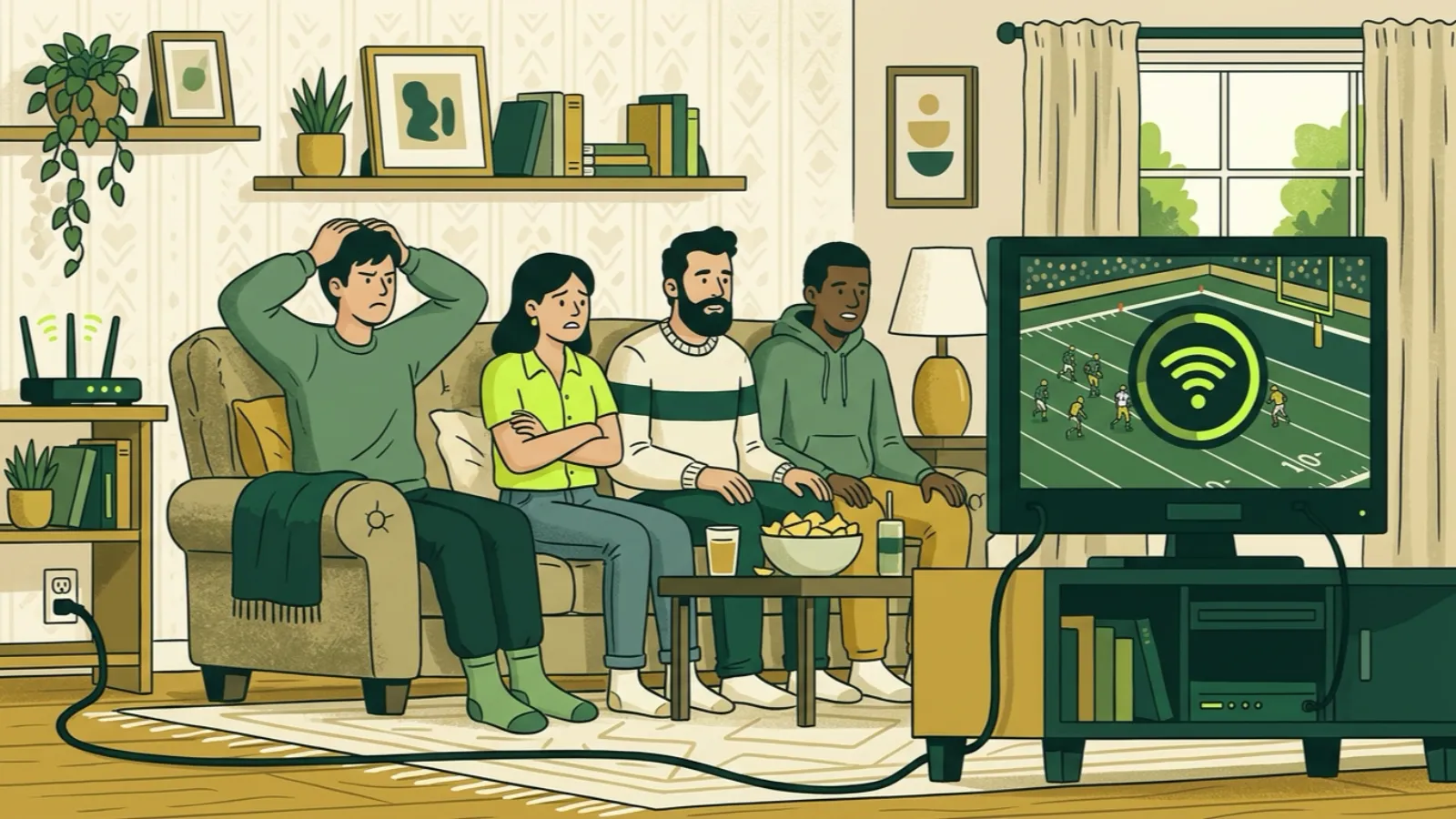
IPTV usually buffers at peak times for one of three reasons: your home Wi-Fi is crowded, your internet provider’s network is busy, or the stream path you’re on is loaded. On a Sunday afternoon or a big fight night, all three happen at once. A setup that has just enough room on a quiet weeknight runs out of room when everyone is watching.
The good news is that most game-day buffering is fixable from your side, and the fixes are cheap. Below is a checklist in the order we’d go through it: start with a test at the actual time you watch, then fix the connection to the TV, then the app, then the provider. Do them in order, because the early steps solve most cases.
One honest note before we start: nobody can promise zero buffering on live TV. What you can do is give your stream enough slack that a busy moment doesn’t freeze the picture.
Why buffering gets worse at peak times
A live stream has to arrive a little faster than you watch it. The player keeps a few seconds in reserve (the buffer). When data comes in slower than it plays, the reserve runs out, and you see the spinning circle.
At peak, three things shrink your margin:
- Your house. Kids on tablets, a second TV, someone uploading photos. Every device shares the same Wi-Fi airtime.
- Your neighborhood. Cable and some fiber networks share capacity locally. When the whole block is streaming the same event, everyone gets a little less.
- The path to the stream. Big events draw heavy load on any streaming service, licensed or not. A different server path can be less loaded.
The checklist, in order
1. Test at the time you actually watch
A speed test at 10 a.m. tells you nothing about 4 p.m. on Sunday. Run it during the busy window, on the device that plays the stream if you can (the FireStick, the TV browser), not your phone sitting next to the router.
On a FireStick or Android TV, open a browser or a speed test app. Write down the download speed.
- About 25 Mbps per HD stream is comfortable.
- About 15 Mbps gets you SD.
- About 50 Mbps for 4K, and only on channels that broadcast in 4K.
If two TVs will play games at once, add them up. If the number at the TV is far below what you pay for, the problem is inside your house. Go to step 2.
2. Use a cable if you can
Wired Ethernet beats Wi-Fi almost every time for live TV. It doesn’t share airtime, and microwaves and neighbors’ routers don’t interfere with it.
- Many smart TVs and set-top boxes have an Ethernet port.
- A FireStick needs a small Ethernet adapter (they plug into the power/USB side), which typically costs less than a pizza.
- If the router is in another room, a powerline adapter kit or a mesh node with an Ethernet port near the TV can get you a cable connection without running wire.
If a cable isn’t possible, step 3 matters more.
3. Get on 5 GHz Wi-Fi, and give the stick some air
Most routers broadcast two bands. 2.4 GHz reaches farther but is slower and more crowded. 5 GHz is faster and less crowded, with shorter range.
- In your router or Wi-Fi settings, check whether your network has separate names for each band (often “-5G” at the end). Connect the TV or stick to the 5 GHz one.
- If the router uses one name for both, you can often split them in the router settings, or just move the router closer so the device picks 5 GHz on its own.
- A FireStick hidden behind a TV loses signal. Use the HDMI extender to pull it out a few inches.
Then run the speed test again on the TV.
4. Cut the background load during the game
This one is free. Pause big downloads, console updates, cloud photo backups and anything else heavy during the event. Close other streams you’re not watching. A phone backing up 2,000 photos at halftime can be the whole problem.
5. Switch the server address
If your speed at the TV is fine and only our stream buffers, the path between you and the server may be the bottleneck that day. Your account page lists several server addresses for your line. Put another one into your player app in place of the old one (your username and password stay the same). If you use our app or web player and it still stutters, email support with your device and the time it happened.
Try it once at peak. If the alternate path is smoother for you, keep it.
6. Raise the buffer in your player app, if it has the setting
Some Xtream players (TiviMate and IPTV Smarters among them) have a buffer size setting under Settings, Player or Playback. A larger buffer means a few more seconds of delay when you change channels, but more room to ride out a dip. If you’re watching one game for three hours, that trade is usually worth it.
Not every app has this, and the names vary. If you don’t see it, skip this step.
7. Check whether your internet provider is slowing video
Some providers manage video traffic during busy hours, especially on cheaper plans or mobile hotspots. Signs: general speed tests look fine, but video specifically struggles, at the same times every week, across different streaming apps.
That’s the one situation where a VPN can help, because it hides what kind of traffic you’re sending. Test at peak with and without one. If it doesn’t help, turn it off: a VPN adds a hop and can slow things down. Our article on whether you need a VPN for IPTV walks through it without the sales pitch.
8. Free up storage and restart the device
Streaming sticks have small storage and limited memory. When the cache fills, apps get sluggish and streams stutter.
- Clear the player app’s cache (on Fire TV: Settings, Applications, Manage Installed Applications, choose the app, Clear cache).
- Uninstall apps you don’t use.
- Restart the device before the game. On a FireStick, hold Select and Play/Pause for about five seconds.
Our FireStick install article has more device-specific fixes.
A quick pre-game routine
| When | What to do | Why |
|---|---|---|
| The day before | Run steps 1-3 if you haven’t, and switch to 5 GHz or wired | Fixes most problems before they matter |
| An hour before | Restart the stick or TV, clear the app cache | Fresh memory, fewer stutters |
| 15 minutes before | Pause downloads and updates on other devices | Frees airtime on your Wi-Fi |
| At kickoff | Tune in early and leave it on that channel | Lets the buffer fill before the action starts |
What to send support if it still buffers
If you’ve gone through the list and it’s still happening, email contact@ip2tv.us. A real person reads it. To get a useful answer fast, include:
- Date and time it buffered, with your time zone.
- The channel (name and group, for example “USA” or “Latino”).
- The device and app: FireStick with our app, Samsung TV with a store app, and so on.
- How it’s connected: Ethernet, 5 GHz or 2.4 GHz Wi-Fi.
- A speed test result from the TV at that time.
- Whether other channels buffer too, and whether other streaming apps were fine.
Point 6 helps the most. If every channel and every app stutters, it’s the connection. If one channel stutters and others don’t, it’s likely the source for that channel, and we can look into it.
Before you buy, test it at peak
If you’re deciding whether IPTV will hold up in your house, use the free 36-hour trial over a busy evening or a weekend afternoon, not a quiet morning. That’s the honest test. If it works for you, compare plans by screen count. And if you’re also weighing a licensed live TV service, our IPTV vs YouTube TV comparison covers the trade-offs. Setup steps for every device are in the setup guides.
