
Yes, you can watch IPTV on a Samsung or LG smart TV without buying anything else. You can’t install Android apps on them, because Samsung uses its own Tizen system and LG uses webOS. But both TVs have a web browser and an app store, and that’s enough for three working setups.
The quickest is our web player in the TV’s browser, signed in with a 6-character code from your phone. The next is an Xtream-capable app from the Samsung or LG store, which usually feels snappier. The third is pasting an M3U link into an app that accepts one. If none of those feel right on your particular TV, a $25-50 streaming stick on a spare HDMI port solves it.
Samsung’s Tizen and LG’s webOS together are on roughly 13% of US streaming TVs, according to Hub Research (July 2026). If yours is one of them, here’s how each route works, step by step.
Before you start: what to have ready
- Your IP2TV login details. After you sign up (or start the free 36-hour trial), you get a username, password and server address by email. You’ll need those for the app route.
- Your phone. For the web player route, you’ll sign the TV in from it.
- A decent connection to the TV. About 25 Mbps for an HD stream is comfortable, and about 50 Mbps for 4K. If your TV has an Ethernet port and the router is nearby, use the cable. Many TVs get a better picture wired than on Wi-Fi.
Option 1: The web player in your TV’s browser
Both brands ship a browser: on Samsung it’s called Internet (Samsung Internet), on LG it’s Web Browser. You’ll find them in the app row on the home screen.
- Open the browser and go to player.ip2tv.us. Bookmark it so you never type it again.
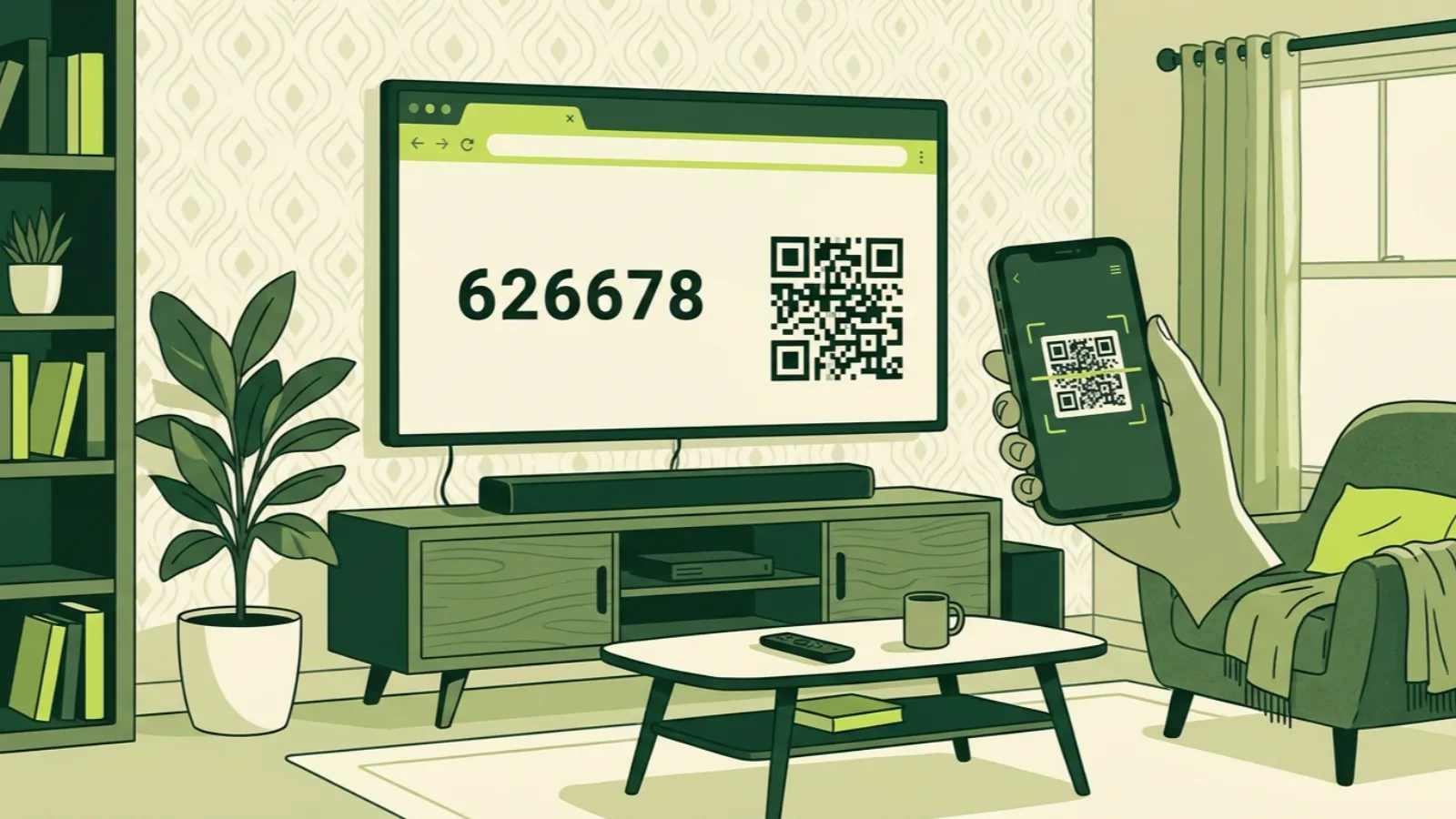
- The player shows a 6-character code and a QR code.
- On your phone, scan the QR or open ip2tv.us/tv and enter the code.
- The TV signs in on its own. Pick a channel from the guide.
That’s the whole setup. You never type a password with the arrow keys, which on a TV remote is nobody’s idea of fun.
What to expect: TV browsers vary a lot. On recent mid-range and higher models, the player runs well. On older or entry-level TVs, scrolling a large channel list can lag, and the browser may get fewer updates. Video playing smoothly but menus feeling sticky is the usual sign of a slow TV processor, not a weak stream.
Option 2: An Xtream app from the Samsung or LG store
Most IPTV players on TVs use what’s called the Xtream login: a username, a password and a server address. Apps built for the TV itself tend to scroll faster than a browser and remember where you left off.
On a Samsung TV (Tizen)
- Press Home, go to Apps, and use the search icon.
- Search for an IPTV player that supports Xtream login. IBO Player is one that many Samsung owners use.
- Install it and open it.
- Some apps show a device ID and ask you to add your login on their website; others let you enter it on the TV. Either way, choose the Xtream Codes option and enter the username, password and server address from your IP2TV email.
On an LG TV (webOS)
- Open the LG Content Store (on newer models, just “Apps”).
- Search for an Xtream-capable player, install it, and open it.
- Pick the Xtream or “Login with username” option and enter the same three details.
A few honest notes about TV store apps:
- They come and go. Samsung and LG remove and re-list IPTV players from time to time. If an app disappears from the store, an already-installed copy usually keeps working, but you may need a different app on a new TV.
- Some charge their own fee. Certain players have a trial and then a one-time or yearly activation fee from the app maker. That’s separate from your IP2TV plan.
- The guide fills in after a minute. The first load pulls the channel list and TV guide (EPG), which can take a moment on a big catalog of 16,000+ channels.
Our smart TV setup guide has screenshots of the login screens.
Option 3: Use an M3U link
An M3U link is a single web address that contains your whole channel list. Some TV apps prefer it, and some only accept it.
Your M3U link is on your account page, next to your login, ready to copy. Then:
- In the app, look for “Add playlist,” “M3U URL” or similar.
- Paste or type the link. If typing on the TV is painful, many apps let you add it from a web page on your phone using the device ID shown on the TV.
- Give the playlist a name and load it.
Xtream vs M3U, briefly: Xtream login is usually better when the app supports both. It keeps live channels, movies and series in separate sections and pulls the TV guide automatically. M3U is a flat list and may need a separate guide link. Use M3U when it’s the only option the app offers.
Which option fits your TV?
| Option | Setup effort | Day-to-day feel | Best when |
|---|---|---|---|
| Web player in the TV browser | Lowest: code from your phone | Fine on newer TVs, can lag on older ones | You want to start watching right away |
| Xtream app from the TV store | Medium: enter three login details once | Usually faster menus, resumes where you left off | You’ll watch most days |
| M3U link in a TV app | Medium | Flat list, guide may need extra setup | The app you like only takes M3U |
When to add a streaming stick instead
Sometimes the TV itself is the weak link. Consider plugging a FireStick or Google TV stick ($25-50) into a spare HDMI port if:
- Menus lag in both the browser and the store apps. The stick brings its own processor, which is often faster than an older TV’s.
- The app you want isn’t in your TV’s store, or it was pulled and you just bought a new TV.
- You want our own Android app, which signs in with the same 6-character code and stays updated. See our FireStick install walkthrough.
- You plan to watch on more than one TV. It’s easier to give every TV the same stick and the same app than to learn three different TV systems. If that’s you, our article on how multiple screens work explains what to pick, and the plans page lists prices for 1 to 5 screens.
Your Samsung or LG TV keeps all its built-in apps. The stick is just another input.
Common Samsung and LG problems, and quick fixes
- “The browser won’t play video.” Update the TV’s software (Settings, Support, Software Update on Samsung; Settings, General, About This TV on LG), then reload the player. If it still won’t play, use a store app.
- The app logs in but shows no channels. Double-check the server address, including the
http://part and any port number, exactly as it appears in your email. - Picture is fine for a while, then stutters. That’s usually the network, not the TV. Try a cable or move to 5 GHz Wi-Fi. Our buffering checklist walks through it in order.
- Remote input is painful. Use the sign-in code for the web player, or the app’s phone-side setup page if it has one.
If you’ve tried these and something’s still off, email contact@ip2tv.us with your TV brand, the model number (on the sticker on the back or in Settings) and which option you’re using. A person reads it and replies. You can also browse the IP2TV FAQ for account questions.
