
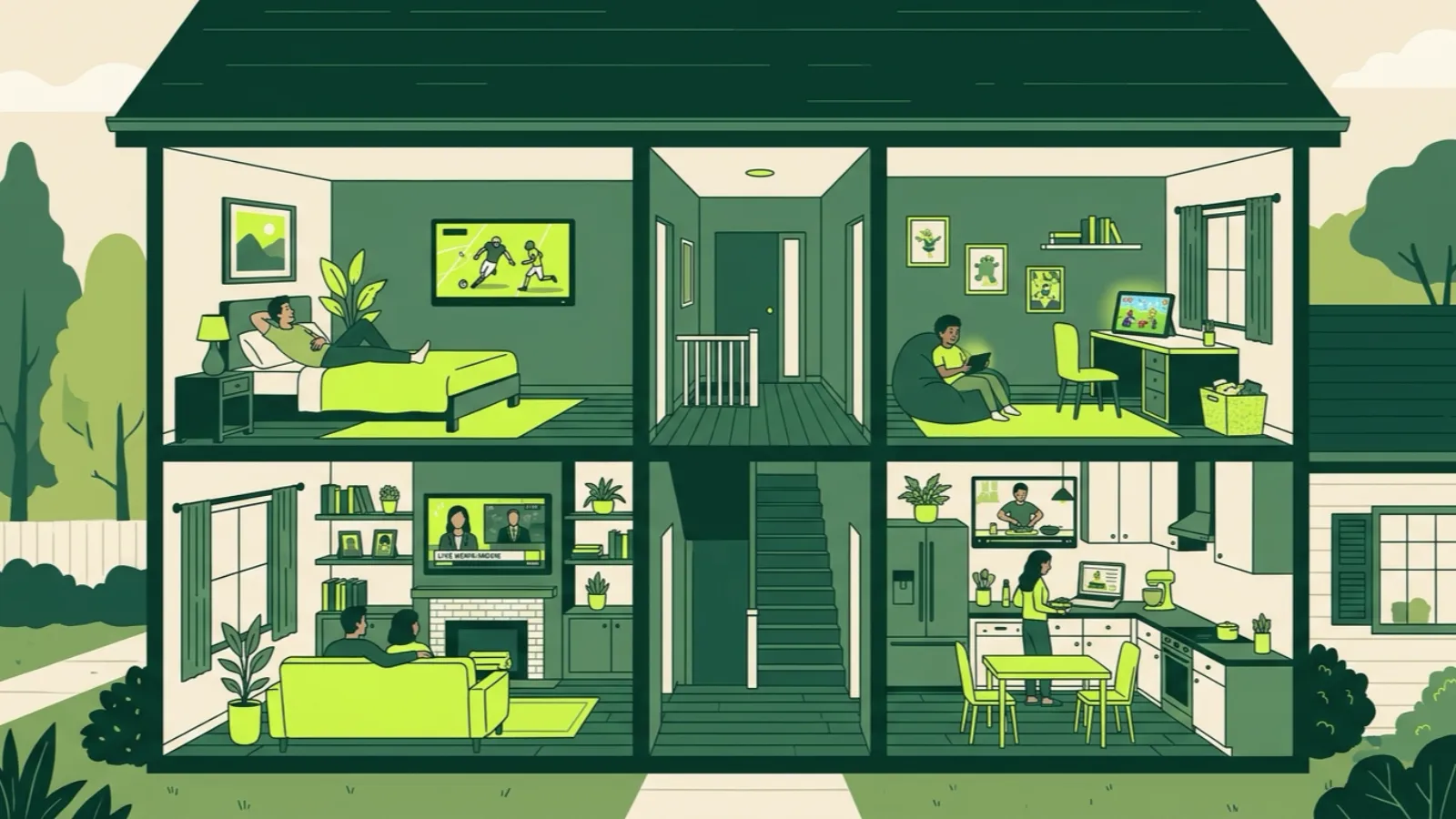
On an IPTV plan, a “screen” (also called a connection) means one stream playing at the same time. It doesn’t mean one device. You can install the app on every TV, phone and laptop in the house; the plan only limits how many of them can play at once. A 2-screen plan lets two devices watch different (or the same) channels simultaneously. A third one trying to start gets a “max connections reached” message.
So the right number isn’t “how many TVs do we own.” It’s “how many things will be playing at the busiest moment of the week.” For most homes that’s Sunday afternoon or a weeknight when the kids and adults want different shows.
Below: how connections work under the hood, why the error shows up when you don’t expect it, a simple way to pick between 1 and 5 screens, and what each option costs per screen.
How IPTV connections actually work
Each IP2TV account (we call it a line) has a username, a password and a screen count. When a device starts playing a channel, a movie or a series episode, it opens a stream, and that stream counts against your screen count. When it stops playing, the slot frees up.
A few things that surprise people:
- Browsing doesn’t count. Scrolling the guide or the movie list without playing anything uses no screen.
- Each playing device counts once, even if two TVs show the same game.
- The kind of device doesn’t matter. A phone counts the same as a 4K TV.
- Installs are free and uncounted. Sign in on as many devices as you like, with our app and its sign-in code, the web player, or any Xtream app.
Installs vs simultaneous plays
This is the most common mix-up, so here it is side by side:
| Situation | Screens used |
|---|---|
| App installed on 4 devices, nothing playing | 0 |
| Living room TV playing a game | 1 |
| Living room TV + bedroom TV, both playing | 2 |
| Same channel on two TVs | 2 |
| One TV, four people watching it | 1 |
| Phone playing a movie in the car + home TV playing news | 2 |
If you’re in a house where the TV in the den gets left on a channel all day, that TV is using a screen all day. Turning it off (or stopping playback) frees it.
What “max connections reached” means and how to fix it
You’ll see this message, or something similar like “too many connections,” when a device tries to start a stream and all your screens are already in use. The fix is usually one of these:
- Find the device still playing. Check every TV, including ones with the screen off but the stick still running. A FireStick keeps streaming even when the TV is switched off by its own remote.
- Close apps properly on phones. Swipe the app away instead of just going to the home screen; some players keep the stream open in the background.
- Wait a few minutes. If a stream was cut off suddenly (Wi-Fi dropped, power went out), the server may still count it as active for a short while before it clears.
- Check for an extra sign-in. If you gave your login to a relative “just for one night,” they may still be using it. Change who has access by emailing support.
If you hit the limit often and none of the above explains it, it’s a sign you need one more screen. Email contact@ip2tv.us and we’ll look at what’s connected on your line.
How many screens does your household need?
Count the devices playing at the busiest moment, not the total devices.
- 1 screen: one person, or a couple that watches together. Also fine if a second device only plays when the first is off.
- 2 screens: a couple with different tastes, or one main TV plus one bedroom or kitchen TV that sometimes overlaps.
- 3 screens: a family where the kids watch something different from the adults at the same time, plus one spare.
- 4 screens: larger families, or a household where game day means the main TV, the bedroom TV and a phone or two.
- 5 screens: several adults with their own schedules, or a multi-generation home where grandparents watch their own channels (say, from the Latino, India or Caribbean groups) while others watch US channels.
A practical tip: pick the number for your normal busy evening, not for one big event a year. If you’re between two sizes, ask yourself how annoying it would be if someone got the error during that busy moment. If the answer is “very,” go one up.
Price per screen, from 1 to 5
Here are the list prices in US dollars. No contract, no auto-renewal: when the term ends, the line stops unless you renew.
| Screens | 1 month | 6 months | 12 months | 12 months, per screen per month |
|---|---|---|---|---|
| 1 | $19 | $56 | $79 | about $6.58 |
| 2 | $25 | $89 | $119 | about $4.96 |
| 3 | $43 | $99 | $149 | about $4.14 |
| 4 | $56 | $110 | $199 | about $4.15 |
| 5 | $67 | $129 | $260 | about $4.33 |
What the table shows:
- The second screen is the cheapest jump. Going from 1 to 2 screens on a 12-month plan adds $40 for the year, about $3.33 a month.
- 3 and 4 screens are the lowest per screen on the 12-month plans, at roughly $4.14-$4.15 each per month.
- On 1-month plans, 2 screens cost $6 more than 1. That’s a low-risk way to test whether your house really needs two.
Paying with PayPal USD (PYUSD) from the PayPal app, or with crypto such as USDT or USDC, takes 15% off these list prices. For example, the 1-screen 12-month plan at $79 comes to about $67.15. The plans page shows the full grid and checkout, and our article on paying for IPTV with PayPal USD explains how that payment works step by step.
For a sense of scale, licensed live TV services in the US price per household, not per screen, at about $82.99 a month for YouTube TV as of September 2026, before taxes and fees. Our IPTV vs YouTube TV comparison looks at what you do and don’t get with each.
Setting up several screens around the house
Once you’ve picked a plan, use the same login on every device:
- FireSticks and Android TV: our app signs in with a 6-character code from your phone. See the FireStick install walkthrough.
- Samsung and LG TVs: the web player in the TV browser, or an Xtream app from the TV store. Our Samsung and LG article covers both.
- Phones, tablets, laptops: player.ip2tv.us in any modern browser.
Remember that more screens playing at once also means more bandwidth: about 25 Mbps for each HD stream. Three HD games at once need around 75 Mbps of real speed, so check that before game day.
Not sure yet? Try it first
The 36-hour free trial needs only an email, no card, and nothing charges at the end. Use it to check picture quality on your own TVs, and during a busy evening count how many people reach for a screen at the same time. Then pick your screen count with real numbers.
Last checked: November 2026
